Project insights
See who changed what, when, and where in your projects. Add projects from GitHub, GitLab (gitlab.com), Bitbucket (bitbucket.org), or your computer, and group them in folders.
How it works
- Step 1. Paste a link to a public project, or sign in with GitHub, GitLab, or Bitbucket to choose your private projects. For GitHub, you first give DeepGraph access to the projects you want with the DeepGraph GitHub App.
- Step 2. DeepGraph reads the project's history: every saved change, who made it, and when. It only reads; it never runs your code.
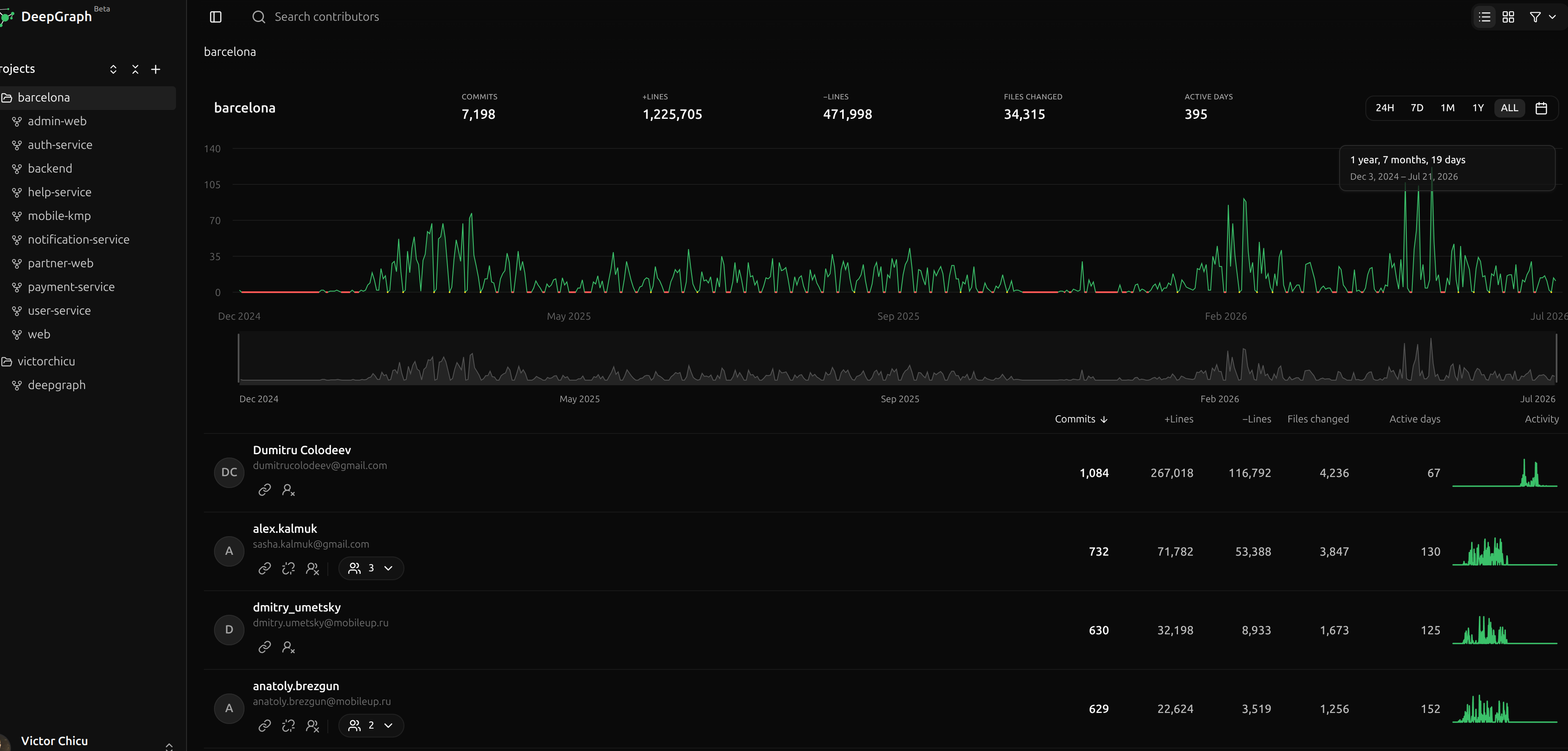
- Step 3. Your report opens. It shows who worked on each project and what they changed, and you can open the changes behind the numbers.
Explore a folder or one project
Group related projects into folders to read their activity together. Open a project to narrow the report, or open a contributor to follow their work across the projects in that report.
Click an active day to see who contributed and when. From there, open a person's commits and the file changes behind them.
Keeping reports up to date
Projects connected through GitHub, GitLab.com, or Bitbucket.org can update when changes reach their main branch, when your connection gives DeepGraph permission to receive update notifications. Other projects, including local projects, update when you run the report again. Projects that haven't changed are reused.
What it doesn't do yet
- It doesn't work with GitLab or Bitbucket servers that companies run themselves.
- It can't export reports.
Plans
Your plan sets how many projects your account can hold and how much history they can have in total. See plans and pricing, or start with Getting started.